The address bar of your web browser might appear deceptively simple — a narrow strip at the top of your screen where you can type web URLs. However, it has become one of the most powerful tools for navigating the internet efficiently. Whether you’re a casual user or tech enthusiast, learning how to use your browser’s address bar more effectively can save time, reduce errors, and enhance your overall browsing experience.
TLDR
The browser address bar is more than just a place to enter website URLs. You can also search Google directly, use custom shortcuts, manage security indicators, and even perform calculations. Learning how to leverage your browser’s address bar gives you quicker access to information and safer browsing. Don’t underestimate its capabilities — it’s a critical tool for efficient web navigation.
1. Search Google or Type a URL: Dual Functionality Explained
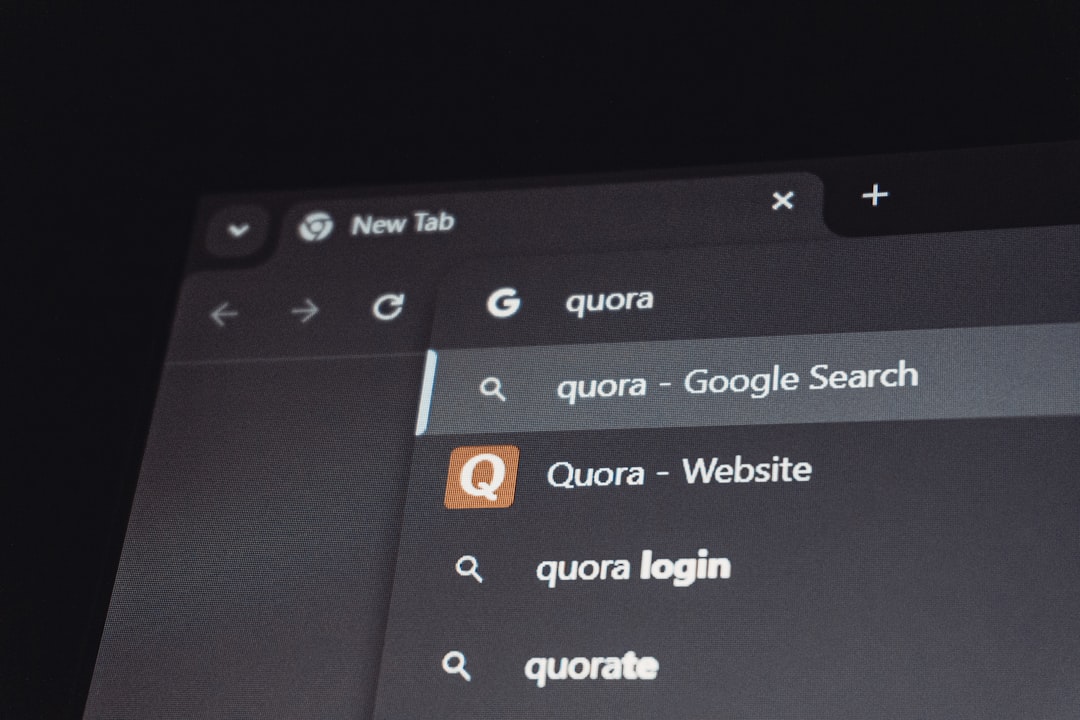
The phrase “Search Google or type a URL” appears in most modern browsers as a prompt in the address bar, particularly Chrome. This reflects the address bar’s dual-function capability: it acts as both a web address field and a search engine input.
- Typing a URL: If you start with www or https://, the browser assumes you are entering a direct web address.
- Typing a phrase: If you enter a keyword or question instead, the browser automatically performs a Google (or your default search engine’s) query.
This design allows you to save time; no need to navigate to Google manually before searching. Just type your query and press Enter.
2. Autocomplete and Browser History: Speeding Up Your Search
When you start typing in the address bar, your browser attempts to autocomplete with suggestions pulled from:
- Your history of visited websites
- Your bookmarks and favorites
- Popular websites and search predictions
This can speed up navigation significantly, especially if you frequently visit the same sites. You can also use keyboard shortcuts like Ctrl + L (Windows) or Cmd + L (Mac) to jump directly to the address bar for quick typing.
3. Advanced Google Search Operators
One of the most powerful features hidden behind the simplicity of the address bar is Google’s advanced search operators. These let you run more specific searches without leaving the bar.
- site: Restrict results to a specific domain.
Example: site:nytimes.com climate change - filetype: Search for specific file types.
Example: filetype:pdf resume templates - intitle: Only show pages with specific keywords in the title.
Example: intitle:”digital marketing tips”
These tools put focused information right at your fingertips — without navigating away from your current tab.
4. Security Indicators: Know Before You Click
The address bar is also your first line of defense against malicious websites. Modern browsers use security icons and color changes to indicate whether a site is secure:
- Padlock icon: Means the website uses HTTPS (encrypted).
- Warning triangle or “Not secure” label: Indicates the website uses HTTP, which is less secure.
- Extended Validation (EV) Certificate: Some businesses show a company name before the URL, especially in older browser versions.

Always verify security indicators before entering sensitive information like passwords or credit card details. The address bar essentially shows you whether a site can be trusted.
5. Built-in Utilities — Calculators, Converters, and Answer Boxes
Google has transformed the address bar into a mini assistant. You can enter simple calculations or conversions directly:
- Calculator: Typing 2+2*5 displays the answer instantly.
- Currency Conversion: 100 USD to EUR
- Weather Check: weather in London
- Time Conversions: time in Tokyo
These functions save you from opening new tabs or hunting down apps for basic tasks.
6. Custom Search Engines and Shortcuts
Advanced users can configure custom search engines in Chrome, Firefox, or Edge via settings. This allows you to search specific sites directly from the address bar by starting with a keyword prefix.
Example:
- Assign wiki to https://en.wikipedia.org/wiki/%s
- Then, typing wiki Einstein in the address bar takes you straight to the Wikipedia page for Einstein.
This feature is ideal for developers, researchers, or frequent users of niche platforms. You can even set up shortcuts for internal company tools or cloud apps.
7. Keyboard Navigation and Control
The address bar isn’t just mouse-friendly—it’s built for keyboard warriors as well:
- Ctrl + Enter: Auto-adds www. and .com around typed text
- Alt + Enter: Opens a search in a new tab
- Arrow keys: Navigate through suggestion history
These keyboard tips help you streamline browsing and reduce reliance on clicks.
8. Omnibox Extensions and Address Bar Enhancements
Browsers like Chrome support extensions that enhance Omnibox (Chrome’s term for the address bar) capabilities. These add more muscle to your searches and integrations:
- Password managers: Autofill and store credentials.
- Productivity tools: Initiate tasks or launch timers.
- Search enhancers: Get richer previews, datasets, or AI-generated snippets.
For example, some extensions let you run AI-driven code searches or query note-taking apps like Notion directly from the address bar.
9. Privacy and Auto Prediction Settings
While auto-suggestions and browsing history optimize your experience, they may also compromise privacy. Most browsers allow you to customize what data is stored and shown:
- Clear browsing history regularly
- Disable URL prediction if it feels invasive
- Enable or disable syncing across devices depending on preference
Navigate to your browser’s settings, usually under “Privacy” or “Search Engine,” to fine-tune these features to your comfort level.
10. Address Bar on Mobile: Underestimated but Powerful
On smartphones, the address bar often doubles as a search field and voice input tool. You can:
- Press microphone icon: To perform voice search
- Use gestures: On some browsers, swiping down reveals search suggestions quickly
- Add to Home Screen: Create app-like shortcuts from a webpage
Despite having a smaller screen, mobile browsers pack the same address bar efficiency — just with a slightly different interface.
Conclusion
The address bar has evolved from a basic URL field to a dynamic command center for web browsing. With features ranging from security checks and instant searches to custom engines and keyboard shortcuts, it provides tools often underestimated by casual users. Mastering the address bar can speed up your tasks, keep you safe online, and enhance your digital productivity and experience.
Next time you’re browsing, take a moment to explore what your address bar can really do — you might be surprised at just how capable it is.