Pixiv is a treasure trove of illustrations, manga, animations, and creative works from artists all over the world. As your collection of bookmarked artwork grows, finding a specific piece can quickly turn into a challenge. Fortunately, Pixiv offers several built-in tools and smart techniques that make searching within your bookmarks efficient and surprisingly powerful—once you know where to look.
TLDR: Searching within Pixiv bookmarks is easy once you understand the filtering and tagging tools available. You can sort by popularity, filter by type, search using keywords, and even use custom bookmark tags for precise organization. Advanced users can combine filters for highly specific results. With a few smart habits, you can transform a chaotic bookmark collection into a searchable personal archive.
Why Searching Within Bookmarks Matters
At first, bookmarking on Pixiv feels simple: you see art you enjoy, you click the bookmark button, and move on. But over time, those bookmarks can grow into hundreds—or even thousands—of saved works.
Without search tools, you’re left scrolling endlessly. That’s where Pixiv’s bookmark filtering and search functions become essential.
Whether you’re:
- Looking for a specific artist’s work
- Trying to find art from a certain fandom
- Searching by character or theme
- Organizing references for a project
Knowing how to search efficiently saves time and frustration.
Understanding Public vs. Private Bookmarks
Before diving into the search process, it’s important to understand that Pixiv bookmarks can be:
- Public – Visible to others
- Private – Visible only to you
You can search within both categories—but you must be viewing the correct bookmark section. Occasionally users think a search “isn’t working,” when in reality the item is saved under private bookmarks.
To switch between them:
- Go to your profile.
- Click on the “Bookmarks” tab.
- Toggle between Public and Private bookmarks.
Make sure you’re searching in the correct category before refining further.
How to Use the Bookmark Search Bar
The simplest way to search within your Pixiv bookmarks is by using the bookmark search field.
Image not found in postmetaHere’s how:
- Open your bookmarks page.
- Locate the search bar (usually near the top).
- Enter keywords related to the artwork.
- Press Enter.
The search function works similarly to Pixiv’s general site search, but it limits results to your saved content only.
What can you search for?
- Artwork titles
- Artist usernames
- Tags attached to the artwork
- Character names
- Series names
If the original artist tagged their work properly, keyword searching becomes incredibly effective.
Using Tags to Make Searches More Powerful
Tags are the backbone of Pixiv’s search system.
When you bookmark an image, Pixiv allows you to add your own bookmark tags. This is one of the most underused but powerful organizational tools available.
Why Create Custom Bookmark Tags?
- Sort artwork by theme (fantasy, cyberpunk, watercolor)
- Group references (anatomy, lighting, backgrounds)
- Organize fandom content
- Keep professional inspiration separate from casual browsing
To add a bookmark tag:
- Click the bookmark button on an artwork.
- Select “Edit Bookmark.”
- Add custom tags in the tag field.
- Save changes.
Once you’ve done this consistently, you can simply click on a bookmark tag from your bookmark page and immediately filter the collection.
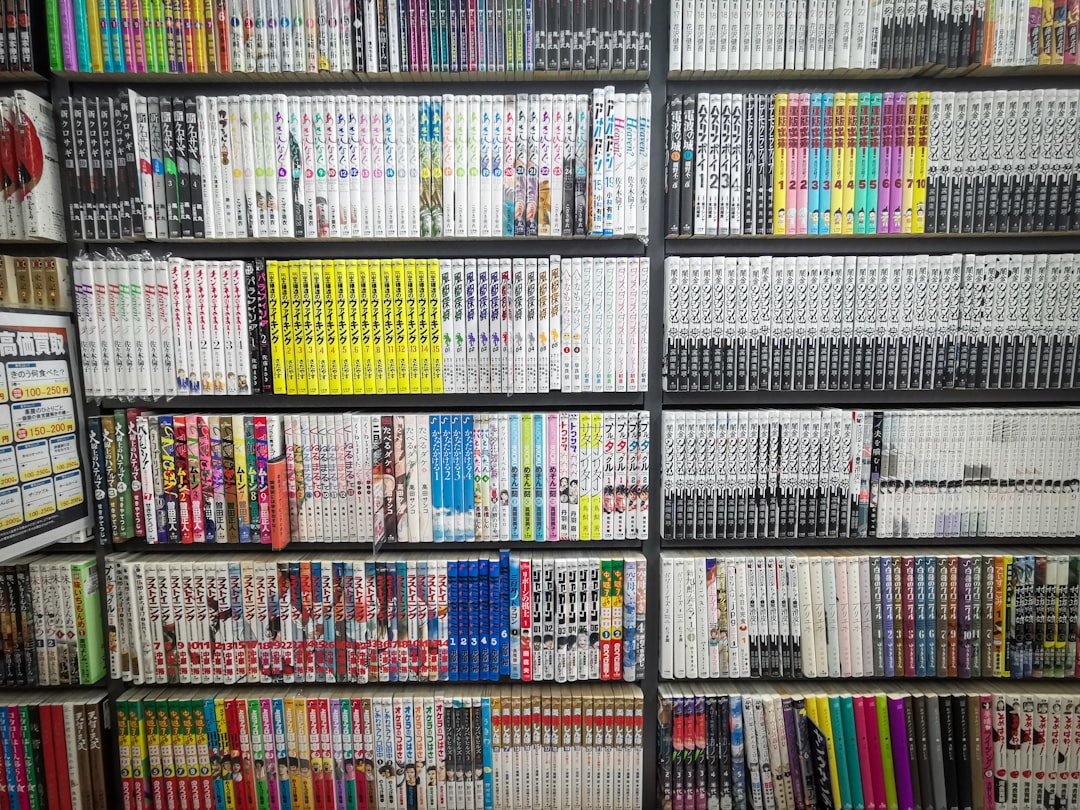
Over time, this transforms your bookmarks into something closer to a carefully categorized art library.
Filtering by Content Type
Pixiv doesn’t only host illustrations. Your bookmarks might contain:
- Illustrations
- Manga
- Animated works
- Novel content
If you’re looking for a specific type of content, you can filter accordingly.
For example:
- If you bookmarked both manga and illustrations of a character, you can filter to show only manga entries.
- If you are compiling animated references, filtering saves time.
Use the filter settings on your bookmark page to narrow results to the format you need.
Sorting Options: Oldest, Newest, and Popular
Search isn’t only about keywords—sometimes it’s about chronology.
Pixiv allows you to sort bookmarks by:
- Newest first
- Oldest first
- Popularity (in some contexts)
This is especially helpful if:
- You remember bookmarking something “recently”
- You want to revisit your earliest inspirations
- You’re tracking evolving art styles over time
Pairing sorting options with keyword filtering gives you a much tighter search result.
Advanced Search Techniques Within Bookmarks
If basic keyword search isn’t enough, try combining strategies.
1. Combine Keywords
Instead of searching a single word like:
“dragon”
Try something more specific:
“dragon night sky”
This reduces irrelevant results and focuses only on works tagged with multiple matching terms.
2. Use Original Japanese Tags
Many Pixiv artists primarily use Japanese tags.
If you’re not finding what you expect:
- Copy the Japanese tag from a known artwork.
- Paste it into your bookmark search.
This can dramatically improve accuracy for anime and manga content.
3. Filter After Searching
Run a keyword search first, then apply:
- Type filters
- Bookmark tag filters
- Sorting adjustments
Layering filters works much better than relying on a single search parameter.
Using Mobile vs. Desktop Search
Pixiv’s interface differs slightly between desktop and mobile devices.

On Desktop:
- Easier access to full filter menus
- Better visibility for large bookmark collections
- Faster multi-step filtering
On Mobile App:
- Streamlined interface
- Quick keyword search
- Limited but functional filtering options
If you’re performing heavy organization or deep searching, desktop tends to be more efficient. However, quick searches on mobile work perfectly well for day-to-day browsing.
What to Do If You Still Can’t Find a Bookmark
Sometimes, even with filters, an artwork seems to vanish. Here are common reasons:
- The artist deleted the work
- The artist set it to private
- Your bookmark was accidentally removed
- It was saved under Private instead of Public (or vice versa)
If a work has been deleted by the creator, it will no longer appear—even if previously bookmarked. In that case, you may see a placeholder or nothing at all.
Unfortunately, deleted works cannot be recovered through Pixiv itself.
Tips for Keeping Your Bookmarks Searchable
The best way to make searching easy is to develop good bookmarking habits.
1. Always Add Custom Tags
Make this automatic. Even simple tags like:
- “reference”
- “color palette”
- “favorite”
- “inspiration”
will pay off long term.
2. Use Consistent Naming Conventions
Don’t switch between:
- “sci fi”
- “scifi”
- “science fiction”
Pick one and stick with it.
3. Periodically Clean Up
Every few months:
- Remove bookmarks you no longer need.
- Merge similar custom tags.
- Reorganize messy collections.
This keeps your library efficient instead of overwhelming.
Turning Your Pixiv Bookmarks Into a Personal Archive
When used strategically, Pixiv bookmarks become more than saved images—they become:
- A creative inspiration vault
- A research database
- A curated fandom archive
- A visual mood board
The combination of keyword search, tag filtering, sorting tools, and custom bookmark tags gives you granular control over your growing collection.
Many users overlook these features and rely only on scrolling. But scrolling doesn’t scale. Searching does.
Final Thoughts
Searching within Pixiv bookmarks is simple on the surface but powerful when fully utilized. By understanding how keyword searches interact with tags, filters, and sorting options, you can locate specific works in seconds—even within massive collections.
The real secret isn’t just learning how to search. It’s learning how to bookmark smartly in the first place.
With consistent tagging, thoughtful organization, and the strategic use of Pixiv’s built-in tools, your bookmark section transforms from a scattered list into a searchable, curated gallery tailored entirely to your tastes.
And once you’ve mastered that, you’ll never lose a favorite artwork again.