It’s annoying when you try to start MGS Delta and all you get is a fatal error message. You just want to play, but the game shuts down. When this happens, the screen freezes or closes and you’re stuck on the desktop. In this guide, you’ll learn what this error means, why it shows up, how to fix it, and what you can do to stop it from coming back.
What Is the MGS Delta Fatal Error?
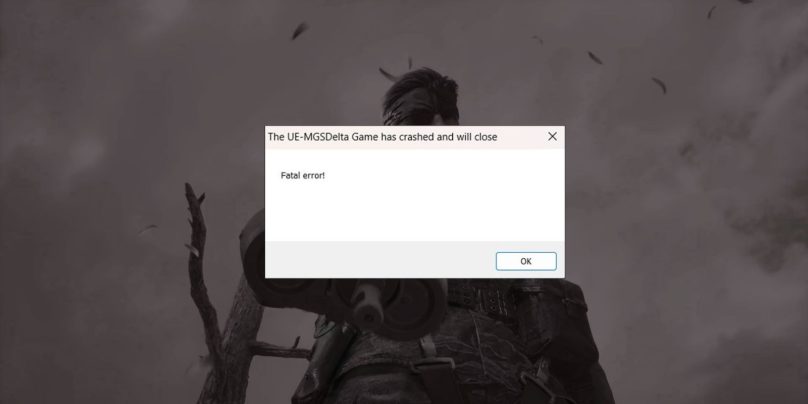
The MGS Delta Fatal Error is a crash message that appears when the game engine cannot load something it needs. It may be related to your graphics driver, game files, or missing system components like DirectX or Visual C++. The error usually happens when the game tries to start a scene, load assets, or communicate with your GPU.
You will usually see this error inside Steam, Epic Launcher, or during the first loading screen. Some players also see it mid-game when the graphics engine hits a problem. Sometimes it happens after a new update or when Windows installs a patch that conflicts with the game.
Common Causes of the MGS Delta Fatal Error
This error can show up for several reasons across Windows systems and different PC setups. These are the most common causes you should know.
- Outdated or unstable GPU drivers
- Corrupted or missing MGS Delta game files
- Missing DirectX or Visual C++ Redistributables
- Steam or Discord overlays fighting with the game
- Low VRAM or memory pressure from other apps
- Overclocking from MSI Afterburner or BIOS tweaks
- Antivirus or Windows Defender blocking game files
How To Fix the MGS Delta Fatal Error?
Fixes will depend on your PC settings and how your system handles the game engine. However, most players can resolve the issue with the steps below.
Fix 1: Update Your GPU Drivers
Game crashes often come from outdated or broken graphics drivers. Updating the driver helps the GPU talk to the game engine correctly. After the update, your PC can run the game with better stability.
Follow the steps below to update your GPU driver.
- Open GeForce Experience, AMD Adrenalin, or Intel Arc Control.
- Go to the Drivers section.
- Check for updates.
- Install the latest driver.
- Restart your PC and try the game again.
Fix 2: Verify Game Files
Broken or missing files can stop MGS Delta from loading. When you verify the files, the launcher replaces anything damaged. After this, the game loads smoother.
Here’s how you can verify game files in just a few seconds.
- Open Steam or Epic Launcher.
- Go to Library.
- Right-click MGS Delta.
- Select Properties or Manage.
- Choose Verify or Validate game files.
Fix 3: Repair DirectX and Visual C++ Packages
Some fatal errors appear when system components like DLL files are missing. Repairing them helps the game engine run correctly.
You can perform the following steps to repair these packages.
- Press Windows + R.
- Type appwiz.cpl and press Enter.
- Find Microsoft Visual C++ Redistributables.
- Select Repair on each entry.
- Download missing packages from Microsoft’s website.
Fix 4: Turn Off Overlays
Overlays add extra tasks on top of the game. They sometimes cause crashes when the game loads shaders or cutscenes. Turning overlays off gives the game clean access to your GPU.
Perform the following steps carefully to turn off overlays.
- Open Steam settings.
- Go to In-Game.
- Turn off Steam Overlay.
- Turn off Discord and GeForce overlays.
- Restart your PC.
Fix 5: Reduce Graphics Settings on Launch
Some PCs load MGS Delta with settings that are too high for the hardware. This leads to quick crashes or fatal errors. Starting with low settings helps the game load safely.
Launch options you can try:
- windowed
- dx12
- lowmemory
Fix 6: Clear Shader Cache
Shader files can break after updates. Clearing the shader cache forces the game to rebuild fresh shaders and helps avoid fatal errors.
Try these simple steps to quickly clear shader cache.
- Open Steam.
- Go to Settings.
- Click Shader Pre-Caching.
- Turn it off.
- Delete the game’s shader folder in your AppData directory.
Fix 7: Disable Overclocking
When your CPU, GPU, or RAM is pushed too far, the game engine may crash. Removing overclocking settings brings stability back.
Turn off overclocking in MSI Afterburner or in your BIOS menu.
Fix 8: Allow the Game Through Antivirus
Sometimes Windows Defender or antivirus tools block part of the game. When this happens, the game engine can’t load files and crashes fast.
Below are the steps that will guide you to whitelist the game.
- Open Windows Security.
- Go to Virus and Threat Protection.
- Click Manage Settings.
- Scroll to Exclusions.
- Add the MGS Delta install folder.
Fix 9: Reinstall the Game to an SSD
Games that run on slow HDDs can freeze while loading data. Installing the game on an SSD improves loading and reduces the chance of fatal errors.
Use a solid state drive with enough free space.
Fix 10: Update Windows
Your Windows build might be missing files the game engine needs. A simple update can fix system conflicts and provide better stability.
Go to Windows Update and install the latest version.
Prevention Tips To Avoid This Error In The Future
Keeping your PC healthy helps stop future crashes. You can follow these habits to reduce MGS Delta issues.
- Keep GPU drivers updated
- Restart your PC before long gaming sessions
- Close heavy apps in the background
- Avoid overclocking for this game
- Keep free space on your SSD
- Update Steam or Epic regularly
- Turn off unstable overlays
Conclusion
In short, the MGS Delta Fatal Error usually comes from outdated drivers, corrupted files, missing system components, or background tools that fight with the game. The fixes above cover the most common problems and help the game run again.
Try the steps one by one. Most players get the game working after updating drivers or repairing game files. If the error still appears, contact the game’s support team or your launcher’s technical help for more guidance.
If this guide helped you, share it or leave a comment so others can fix their game too.