When the WGU Assessment Center stops working, it can feel stressful. You might be ready to take an exam, but the page won’t load, the screen goes white, or nothing responds. When this happens, you want quick answers so you can get back on track. This guide explains why the problem shows up and how to fix it fast with simple steps.
What Is the WGU Assessment Center?
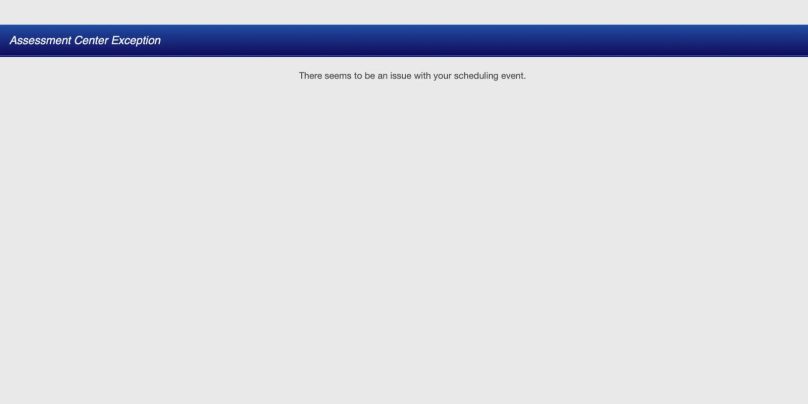
The WGU Assessment Center is the online space where Western Governors University students take tests. It handles objective assessments, performance assessments, and some proctored exams. It loads the exam tools, instructions, timers, and submission screens.
You use it through the WGU Student Portal on your laptop, Chromebook, phone, or tablet. If the platform cannot load correctly, you might see frozen pages, endless loading, or missing exam buttons.
Common Causes of WGU Assessment Center Not Working
The Assessment Center can stop working for different reasons. Some of the most common ones include:
- Corrupted browser cache or cookies
- Pop up blockers stopping exam windows
- VPN or proxy blocking WGU systems
- Old or unsupported browser
- WGU server maintenance
- Weak or unstable Wi Fi
- Secure exam browser failing to launch
How To Fix WGU Assessment Center Not Working?
Here are nine simple fixes you can try. Start with the easy ones first.
Fix 1: Refresh the Page and Log In Again
Sometimes the session times out. When this happens, the exam won’t load. Refresh the page or close the browser tab. Log back into the WGU Student Portal and try again.
Fix 2: Clear Browser Cache and Cookies
Old data can break the exam pages. Clearing cache gives you a clean start.
Follow the steps below to clear your cache:
- Open your browser settings.
- Go to Privacy and Security.
- Select Clear browsing data.
- Clear cache and cookies.
- Restart your browser.
Fix 3: Turn Off Your VPN
A VPN can block WGU servers. Many exam tools need direct access, and a VPN slows or hides your connection.
Turn it off, refresh the page, and try loading the Assessment Center again.
Fix 4: Disable Pop Up Blockers and Extensions
The Assessment Center sometimes opens tools or instructions in new windows. A pop up blocker or ad blocker can block these windows.
Try these simple steps to turn them off:
- Open your browser extensions page.
- Disable ad blockers.
- Disable pop up blockers.
- Refresh the exam page.
Fix 5: Update Your Browser
WGU works best on updated browsers. An old version causes loading errors.
Here are the following steps which help you update:
- Open your browser menu.
- Click About.
- Install any updates.
- Restart the browser.
Fix 6: Switch to a Supported Browser
WGU usually works best with Chrome, Firefox, or Edge. If you’re using Safari or an uncommon browser, some exam tools may not load.
Switch to one of the supported browsers and try again.
Fix 7: Restart Your Wi Fi or Use a Hotspot
Weak Wi Fi can stop the exam from loading. Restarting your router or switching to mobile data can help you load the Assessment Center faster.
Fix 8: Restart Your Device
A simple restart resets your test environment and clears background apps. When your device resets, the exam tools load cleaner.
Fix 9: Check if WGU Servers Are Down
Sometimes the issue isn’t you. WGU might have maintenance or a temporary outage. Check for messages on your WGU Student Portal, email, or ask your course mentor.
If servers are down, you’ll need to wait until WGU restores the system.
Prevention Tips to Avoid Errors in Future
A few small habits can help avoid this issue in the future:
- Keep your browser updated
- Clear cache every few weeks
- Avoid school or work networks that block tools
- Log out of long sessions
- Restart your device before major exams
- Test your internet before starting an assessment
Conclusion
When the WGU Assessment Center stops working, it usually means a problem with your browser, your network, or the system itself. Many fixes are simple, like clearing cache, updating your browser, or turning off VPN. You can solve the issue fast by trying the steps in this guide.
If none of the fixes work, reach out to WGU support or your course mentor. They can check for system outages or exam-specific issues. And if this guide helped you, feel free to share it so other students can fix the same problem.