



Sometimes an app or program starts normally, but when it tries to connect to a server, it suddenly fails with onconnectproc unknown error 212. This usually happens during login, startup, or when a network connection should begin. The error feels confusing because it does not clearly say what went wrong. In most cases, it points to a connection problem rather than an issue with your account.
This article explains what the error means, where it appears, why it happens, and how to avoid facing it again.
What Is onconnectproc Unknown Error 212?
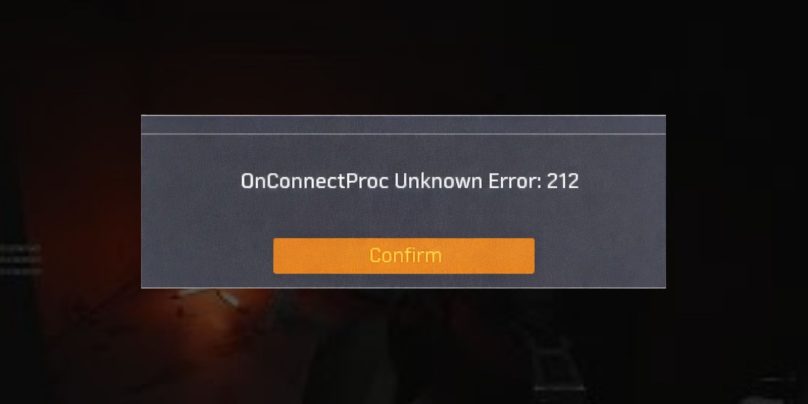
onconnectproc unknown error 212 means the application failed during its connection process. The client tried to open a network connection, but the connection did not complete successfully. This happens before a proper handshake with the server, which means the request never reached a stable connection state. The issue usually relates to network communication handled by the operating system, such as Windows, rather than login credentials.
Users often see this error while launching a program, joining an online service, or connecting to a remote server. The app may freeze, retry, or close after the message appears. The error does not always mean the server is down. It only means the connection attempt failed.
Common Causes of onconnectproc Unknown Error 212
This error can happen for several reasons, mostly related to network access, security settings, or how the client is configured. Even if the internet works for other apps, one blocked request can trigger this error.
Common causes include:
- Server temporarily unavailable or overloaded
- Firewall blocking outgoing or incoming connections
- Antivirus software interfering with network traffic
- DNS resolution problems in DNS
- Proxy or VPN conflicts
- Corrupted or incomplete application files
- Outdated or damaged Network Driver
Any of these can stop the app from completing the connection process.
How to Fix onconnectproc Unknown Error 212?
This error appears when an application cannot complete a network connection. The client tries to reach a server, but the connection fails before it becomes stable. In most cases, the problem sits in network settings, security blocks, or client files.
Start with the simple checks first. Many connection errors clear without complex changes.
Fix #1: Restart the Application and System
Temporary network or app glitches can block the connection process. Closing the application and restarting the system clears stuck processes and reloads network services. After a restart, the app often reconnects normally and the error does not appear again.
Fix #2: Check Server Status or Availability
Sometimes the server you are trying to reach is offline, busy, or under maintenance. When the server does not respond, the client shows error 212. Check the service’s official status page or announcements. If the server is down, waiting is the only safe fix.
Fix #3: Disable Firewall or Antivirus Temporarily
Firewalls and antivirus tools can block outgoing connections without warning. This is common when a new app tries to access the internet.
Turn off the firewall or antivirus briefly, then reopen the application and test the connection. If the error disappears, add the app to the allowed list before turning protection back on.
Fix #4: Restart Network Equipment
Router or modem issues can break connections even if the internet looks active. Restarting network equipment refreshes routing and clears short network errors.
You can do this safely by:
- Turning off the router and modem
- Waiting a short time
- Turning them back on
- Reopening the application
Many network errors clear after this step.
Fix #5: Flush DNS or Reset Network Settings
DNS problems can prevent apps from finding the correct server address. Flushing DNS clears outdated network records.
Follow these steps on Windows:
- Open Command Prompt as administrator
- Type
ipconfig /flushdns - Press Enter
- Close the window and restart the app
This often restores proper name resolution.
Fix #6: Update or Reinstall the Application
Corrupted or incomplete app files can stop the connection process. Updating or reinstalling refreshes all required components.
Uninstall the app, restart the system, then install the latest version from the official source. After reinstalling, try connecting again.
Fix #7: Update Network Drivers
Outdated or damaged network drivers can cause connection failures. Updating drivers refreshes how the system handles network traffic.
Open Device Manager, locate the network adapter, and update the driver. After updating, restart the system and test the connection again.
Prevention Tips to Avoid onconnectproc Unknown Error 212 in the Future
Preventing this error is often easier than fixing it after it appears. Keeping your system and network setup stable helps applications connect without interruption. Small changes can reduce the chance of connection failures.
To lower the risk of seeing this error again:
- Keep applications and launchers updated
- Use a stable internet connection
- Avoid unnecessary VPNs or proxy tools
- Configure firewall rules carefully
- Keep antivirus software updated and reviewed
- Update network drivers regularly
- Restart your system and router from time to time
These steps help maintain smooth communication between apps and servers.
Conclusion
In short, onconnectproc unknown error 212 appears when an application fails to establish a network connection. It usually relates to network access, security blocks, or client configuration issues rather than account problems.
Understanding the causes and prevention tips can save time and reduce frustration. If this error keeps appearing after basic checks, contacting the app’s official support or system administrator may be necessary. If this article helped you, consider sharing it and leaving a comment about what worked for you.